Present with your voice
Speak naturally.
Your slides follow.
Prezntly matches your voice to the deck you already have. Stay with your audience.
PDF or PowerPoint. Microphone on your terms.
The idea you’re explaining
“We’re using leak alerts and rainwater to reduce campus water use.”
Choose a topic. See the matching slide.
One less thing
to coordinate.
You have a room to speak to. Prezntly helps with the slide changes.
Less reaching for a clicker. Less asking somebody else to advance the deck. More room to explain, respond and stay with your audience.
- Keep your existing PDF or PowerPoint deck.
- Explain ideas in your own words.
- Step in with manual controls whenever you need.
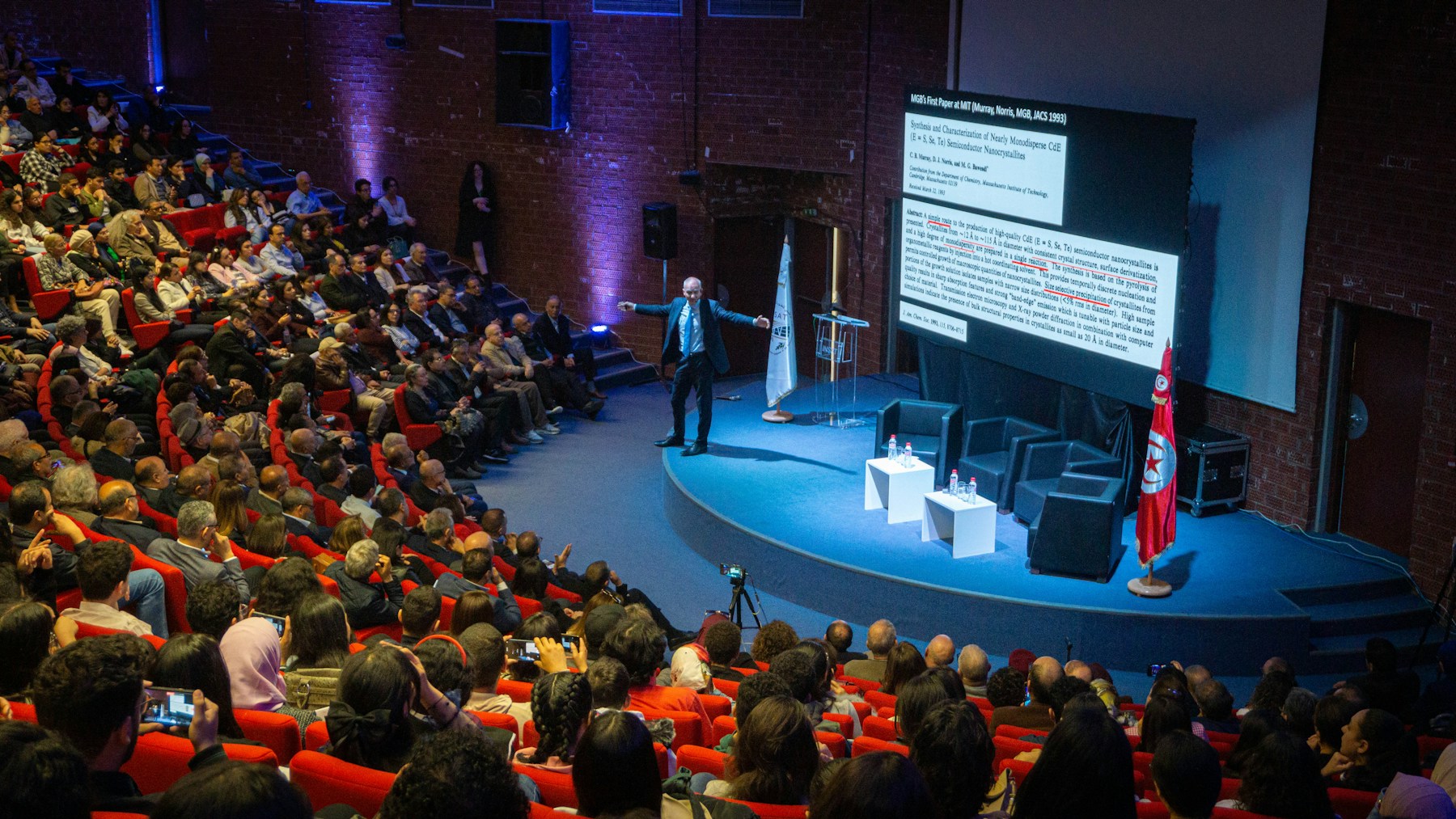
More being in the room.
Follow the thought.
Not a script.
Your deck gives Prezntly the context. Your voice gives it the direction.
Prezntly prepares the meaning behind your slides, then matches what you’re discussing to that context. No separate script or recorded rehearsal.
- Stay with the topic.
- Explain an idea naturally. Prezntly can bring the relevant slide into view.
- Revisit an earlier point.
- A question can take you back. Following can match an earlier slide, and the viewer keeps a Return to main control close at hand.
- Keep the final say.
- Clear context helps the match. When it’s unclear, the current slide stays in place. Manual navigation is always available.
Give your slides
a direction.
Have a particular slide in mind? Say where you want to go.
Alongside automatic topic following, Prezntly understands direct navigation requests. Choose a numbered slide or ask for the slide that covers a subject in your deck.
Speak one complete command at a time while Following is active. The requested slide must be in your presentation.
- Choose a slide number
Go to slide one.
Go to slide three.
Go to slide five.
Use the slide’s position in your deck. Digits and number words work, so
Go to slide number 5
is also supported.- Find a slide by topic
Go to the slide about payments.
Prezntly searches your deck for that subject. When the request or match is unclear, it keeps the current slide rather than guessing.
Bring the deck
you already have.
Keep your slides. Prezntly prepares the context around them, so you can get on with presenting.
- 01
Upload your presentation.
Bring a PDF or PowerPoint (.pptx) deck. The slide order and original visuals remain the starting point.
- 02
Let Prezntly prepare it.
Prezntly reads the slides and prepares their context. Wait for Ready, then look through the deck before you begin.
- 03
Start Following.
Choose Start following and allow microphone access. Speak in your own words, or use a direct voice command when you want a particular slide.
Your presentation.
Your call.
Following helps with the repetition. You decide what happens next.
Choose a thumbnail, use Previous or Next, or navigate with the viewer’s arrow keys. Manual navigation takes priority, so you can step in whenever the conversation takes a different turn.
- Hold
- Pause voice following and local microphone capture while you explain, take a question or choose another slide.
- Resume
- Start following again when you are ready. Coming back to the app or refreshing the page never restarts the microphone for you.
- Stop
- End the live session and microphone capture. Your slides remain available for manual navigation.
Give the slide
the room.
Presentation view puts the slide in the center and hides the setup sidebar and transcription. Portrait or landscape, the whole page stays in view.
Use this focused view when presenting to a room or sharing your screen. Compact controls remain available when you need them, and full screen is there when you choose it.
Before
you begin.
A few practical details for your next presentation.
What can I upload?
PDF and PowerPoint (.pptx) presentations within the 20 MiB upload limit. Prezntly prepares your existing deck; you do not need to rebuild it in the app.
Do I need to read my slides word for word?
No. Prezntly prepares context from the content of your deck and matches your speech to the topic. You can explain an idea in your own words without writing a separate script or recording a rehearsal. Clear context helps the matching.
Which voice commands can I use?
Try “Go to slide three,” “Go to slide number 5,” or “Go to the slide about payments.” Use one complete command at a time while Following is active. Numbers refer to the slide’s position in your deck, and the requested slide or topic needs to exist in that presentation.
Can I still change slides myself?
Yes. Use the slide thumbnails, Previous and Next controls, or the viewer’s arrow keys. Manual navigation takes priority. Hold pauses Following, Resume starts it again, and Stop ends the live session.
What happens if a command or match is unclear?
Prezntly keeps the current slide when a request is missing a target, out of range or ambiguous. You can repeat a clear command, continue explaining the topic, or choose a slide manually. Conservative checks also help avoid acting on quoted, negated or deferred commands.
How quickly do slides change?
Following responds to finalized speech and a clear slide match. Timing depends on your speech, connection and processing. A 1.5-second transition guard prevents rapid changes; commands received inside that window can be discarded, so pause briefly and repeat if needed. This is a spacing rule, not a promised response time.
When is my microphone on?
Only after you choose Start or Resume following and grant microphone permission. Hold or Stop ends local capture. Reloading or returning to the app never starts the microphone automatically.
Does Prezntly need an internet connection?
Yes. This web version uses online services to prepare the deck, transcribe speech and match slides. You need a connection while uploading, preparing and Following.